
Recently, as part of the (En)Twine’d Game Jam, John Stewart asked me to help with some code he had found to access a Google Sheet from within Twine. In working with what he had, I said I would post my own write-up of how the code worked and some other solutions I’ve found. This is that post.
Accessing Google Sheets via Sheetrock.js
Months ago, I was asked by Keegan Long-Wheeler if it was possible to access Google Sheets from within Twine, Knowing, of course, that Twine is only limited by the browser in which it runs, I put together an example over a couple nights using a library called Sheetrock designed around accessing Google Sheets.
Note: Using this library requires some knowledge of jQuery to access the library as well as how to use SugarCube’s functions to load remote code. This Cookbook entry can help in reviewing how to load and use remote JS in Twine.
This file contains hidden or bidirectional Unicode text that may be interpreted or compiled differently than what appears below. To review, open the file in an editor that reveals hidden Unicode characters.
Learn more about bidirectional Unicode characters
| :: StoryTitle | |
| Google Spreadsheet Testing | |
| :: UserScript[script] | |
| /* | |
| A short example of how to load the Sheetrock.js library | |
| using the existing jQuery library as part of Twine 2 | |
| and add a on-the-fly variable in SugarCube using | |
| State.variables. | |
| Sheetrock.js (https://github.com/chriszarate/sheetrock) | |
| */ | |
| // Call this function during the "ready" event | |
| $(function() { | |
| // Set the URL to load | |
| // (In this case, the Sheetrock.js library for | |
| // accessing public Google Spreadsheets.) | |
| var URL = "https://cdnjs.cloudflare.com/ajax/libs/jquery-sheetrock/1.1.4/dist/sheetrock.min.js"; | |
| // Use getScript() to fetch and run remote JS | |
| $.getScript( URL ) | |
| // If everything went well, run done() | |
| .done(function( script, textStatus ) { | |
| // Call loadsheet() | |
| loadSheet(); | |
| }) | |
| // If it failed, run fail() | |
| .fail(function( jqxhr, settings, exception ) { | |
| console.log("Remote loading failed!"); | |
| }); | |
| function loadSheet() { | |
| // Define spreadsheet URL. | |
| // (This example holds baseball data.) | |
| var mySpreadsheet = 'https://docs.google.com/spreadsheets/d/1qT1LyvoAcb0HTsi2rHBltBVpUBumAUzT__rhMvrz5Rk/edit#gid=0'; | |
| // Run sheetrock using an empty selector | |
| $().sheetrock({ | |
| // Set the URL of the Google Spreadsheet | |
| url: mySpreadsheet, | |
| // Set a callback from the results | |
| callback: function (error, options, response) { | |
| // Response holds the data. | |
| // For rows, .rows | |
| // For HTML, .html | |
| // (https://github.com/chriszarate/sheetrock#callback) | |
| // In SugarCube, we can access variables through | |
| // State.variables | |
| State.variables.response = response.rows[0]; | |
| }, | |
| // Query is based on the SQL-like Google Query Language | |
| // (https://developers.google.com/chart/interactive/docs/querylanguage) | |
| // In this example, select (get) the columns A, B, and C | |
| query: "select A,B,C" | |
| }); | |
| } | |
| }); | |
| :: Start | |
| We will now wait for the response to load. We do this because there is now a race condition between the loading and parsing the Google Spreadsheet and Twine itself. (A "race condition" is where two or more processes are running at once and one depends on data from the other. They are "racing" each other to finish.) | |
| Since Twine will usually load first, we setup a timer to check for the variable we want and then show the results when they are detected. This delays the "race" until both are where they need to be in order to continue. | |
| <<repeat 1s>> | |
| <<if $response != undefined>> | |
| Response found! | |
| The first three column names (A, B, C) are: | |
| <<print $response.labels[0]>> | |
| <<print $response.labels[1]>> | |
| <<print $response.labels[2]>> | |
| <<stop>> | |
| <</if>> | |
| <</repeat>> |
https://gist.github.com/videlais/3250e278d08f43b4b9cf26c15ce8a81e#file-googlesheets-twee
A pre-compiled version can also be found here. Download and import the Twine file in either the downloadable or online version of the editor to see the code and existing passages.
While Sheetrock is designed to access a Google Sheet, it does not provide functionality to add or update cells. For that, additional code on the server side (the Google Sheet side) is needed to understand incoming requests.
Adding Google Sheet Values Remotely
Google Sheets provides extendable functionality through macros. Additional code can be added through the Script Editor. Through its API, server-side code can be provided to react to incoming requests and create a database-like interface to get and set cells.
 Create or open an existing Google Sheet. This will serve as the database and will be public to the internet. Do not put private information in this database.
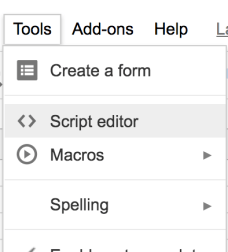
Open the Script Editor. This can be found under Tools –> Script Editor.
This file contains hidden or bidirectional Unicode text that may be interpreted or compiled differently than what appears below. To review, open the file in an editor that reveals hidden Unicode characters.
Learn more about bidirectional Unicode characters
| // 1. Enter sheet name where data is to be written below | |
| var SHEET_NAME = "DATA"; | |
| // 2. Run > setup | |
| // | |
| // 3. Publish > Deploy as web app | |
| // – enter Project Version name and click 'Save New Version' | |
| // – set security level and enable service (most likely execute as 'me' and access 'anyone, even anonymously) | |
| // | |
| // 4. Copy the 'Current web app URL' and post this in your form/script action | |
| // | |
| // 5. Insert column names on your destination sheet matching the parameter names of the data you are passing in (exactly matching case) | |
| var SCRIPT_PROP = PropertiesService.getScriptProperties(); // new property service | |
| // If you don't want to expose either GET or POST methods you can comment out the appropriate function | |
| function doGet(e){ | |
| return handleResponse(e); | |
| } | |
| function doPost(e){ | |
| return handleResponse(e); | |
| } | |
| function handleResponse(e) { | |
| // shortly after my original solution Google announced the LockService[1] | |
| // this prevents concurrent access overwritting data | |
| // [1] http://googleappsdeveloper.blogspot.co.uk/2011/10/concurrency-and-google-apps-script.html | |
| // we want a public lock, one that locks for all invocations | |
| var lock = LockService.getPublicLock(); | |
| lock.waitLock(30000); // wait 30 seconds before conceding defeat. | |
| try { | |
| // next set where we write the data – you could write to multiple/alternate destinations | |
| var doc = SpreadsheetApp.openById(SCRIPT_PROP.getProperty("key")); | |
| var sheet = doc.getSheetByName(SHEET_NAME); | |
| // we'll assume header is in row 1 but you can override with header_row in GET/POST data | |
| //var headRow = e.parameter.header_row || 1; Hawksey's code parsed parameter data | |
| var postData = e.postData.contents; //my code uses postData instead | |
| var data = JSON.parse(postData); //parse the postData from JSON | |
| var headers = sheet.getRange(1, 1, 1, sheet.getLastColumn()).getValues()[0]; | |
| var nextRow = sheet.getLastRow()+1; // get next row | |
| var row = []; | |
| // loop through the header columns | |
| for (i in headers){ | |
| if (headers[i] == "Timestamp"){ // special case if you include a 'Timestamp' column | |
| row.push(new Date()); | |
| } else { // else use header name to get data | |
| row.push(data[headers[i]]); | |
| } | |
| } | |
| // more efficient to set values as [][] array than individually | |
| sheet.getRange(nextRow, 1, 1, row.length).setValues([row]); | |
| // return json success results | |
| return ContentService | |
| .createTextOutput(JSON.stringify({"result":"success", "row": nextRow})) | |
| .setMimeType(ContentService.MimeType.JSON); | |
| } catch(e){ | |
| // if error return this | |
| return ContentService | |
| .createTextOutput(JSON.stringify({"result":"error", "error": e})) | |
| .setMimeType(ContentService.MimeType.JSON); | |
| } finally { //release lock | |
| lock.releaseLock(); | |
| } | |
| } | |
| function setup() { | |
| var doc = SpreadsheetApp.getActiveSpreadsheet(); | |
| SCRIPT_PROP.setProperty("key", doc.getId()); | |
| } |
Replace any existing code with Code.gs contents. This will provide the necessary server backend to updating cells.
// 1. Enter sheet name where data is to be written below

var SHEET_NAME = "DATA";
Replace the name of the sheet to use in the SHEET_NAME variable. By default, the first sheet will be called “Sheet1”. Following these direction, replace the string “DATA” with “Sheet1” in the code.
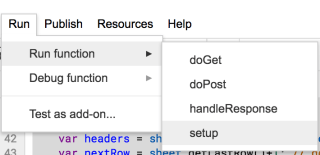
Run the setup function. In the Script Editor, go to Run –> Run Function –> setup. This will prepare the code.

Publish the web app. In the Script Editor, go to Publish –> Deploy as web app. This will open the dialog box for deploying the script as a web app.
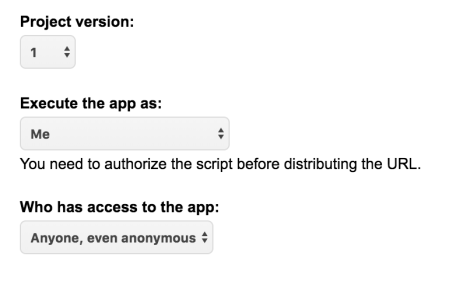
Fill in the project version, select to execute the app as “Me…”, and select “Anyone, even anonymous” as the access level. Add in a project version and select to execute the app and who has access. Be sure to select “Anyone, even anonymous” or the code will not be able to accept incoming requests. Click Publish to finish.

Copy the provided URL and click “OK” to close. The code will now be deployed and ready.

Return the Google Sheet and add in column names and verify the sheet name. The data passed to the server-side function MUST match existing column names or it will be ignored. In order to accept incoming data, add column names.
Note: This code adds a Timestamp column if one is not found. As part of the code, it will record changes and when they happened.
This file contains hidden or bidirectional Unicode text that may be interpreted or compiled differently than what appears below. To review, open the file in an editor that reveals hidden Unicode characters.
Learn more about bidirectional Unicode characters
| <script> | |
| // Configure the data to send | |
| var dataToSend = { | |
| "Column 1": "Some Value", | |
| "Column 2": "Some Other Value", | |
| "Column 3": "Some Additional Value" | |
| }; | |
| // Call the built-in $.ajax function as part of jQuery | |
| // url: The URL of the web app | |
| // method: Use the GET method | |
| // dataType: Set the data type as JSON | |
| // .done: call is complete and without error | |
| // .fail: call experienced an error | |
| $.ajax({ | |
| url: "https://script.google.com/macros/s/AKfycbxDlMvr7ZL5zdb06zA2ta7XcNsT08nIszBEmKUAfjvWCi0KvA/exec", | |
| method: "GET", | |
| dataType: "json", | |
| data: dataToSend | |
| }).done(function() { | |
| // Do something on success | |
| }).fail(function() { | |
| // Optionally do something on error | |
| }); | |
| </script> |
Create or open an existing Twine file in the editor view. In a passage designed for the purpose of sending data, copy the code. This will call the jQuery $.ajax() function to send the data to the Google Sheet. If no errors have occurred, the new value will appear in the sheet within seconds of the call.
Note: If using column names with spaces, as with the example, be sure to enclose them in quotations to properly escape them.
Warning: This is not production code and should never be used as such. Using Google Sheets in Twine is a good proof-of-concept use case. Additional precautions should be used beyond a testing environment and for live, public code. Being aware of cross-site vulnerabilities and different avenues of attack can help protect yourself, project, and code.

